
Room Automations
Configure a Room to run a sequence on its own. Choose what starts it, put the Actions in the order they should happen, and enable it when the Room is ready. Automations run locally on the Room Station, so they keep working without a connection.
Decide what starts the sequence
Automations live in a new Automations tab in Edit Room, beside Details, Puzzles & clues, and Media library. Each one is a single Trigger followed by an ordered list of Actions, written as a plain WHEN … THEN … sentence.
A Trigger can be the timer starting or resuming, the timer stopping, time remaining crossing a value you set, a specific Clue being sent, a specific Puzzle being marked complete, or every completable Puzzle being finished. Each Trigger carries its own repetition rule, and the editor states it under your selection: a time threshold fires at most once per game, a specific Clue fires on its first successful send, and a Puzzle completion fires every time it happens.
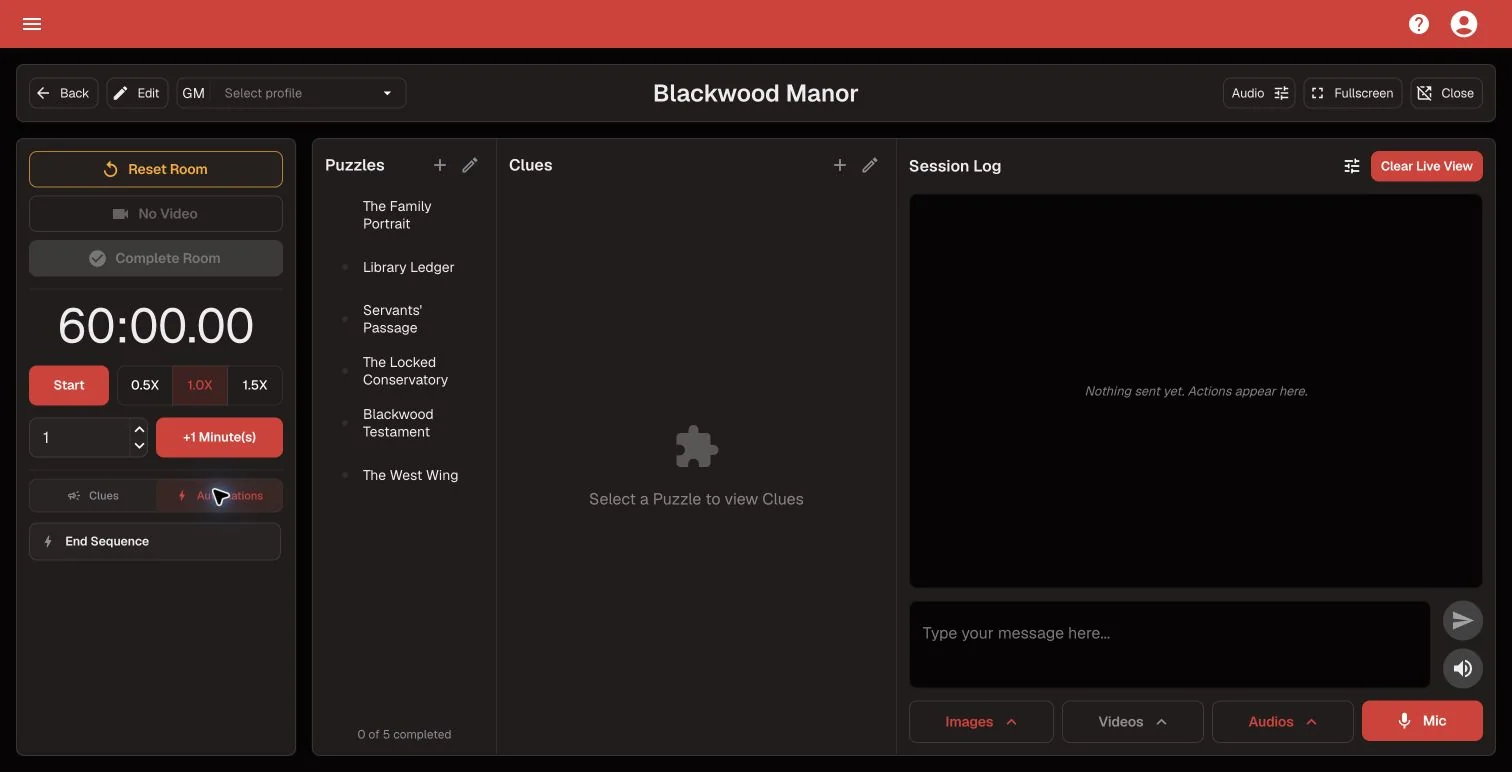
For sequences a Game Master should start deliberately, use a Dashboard Automation Button instead. Enabled button Automations turn the Clue controls into two tabs, Clues and Automations, with Clues always the default when the Dashboard opens or the Room is reset.
Put the Actions in order
Add up to twenty Actions and drag them into the order they should run. Send a specific Clue or a custom message with an optional alert tone, mark a Puzzle complete, add or subtract timer seconds, start or stop the timer, show an image, play a video or audio file, stop audio, clear Live View, start or stop the soundtrack, wait between one second and five minutes, or end the Room as a completion or a failure.
Video and audio Actions continue immediately by default. Turn on “Wait until finished before continuing” when the next Action should hold until the media ends. The editor disables Actions that need Room content you have not configured. Complete Room and Fail Room must be last, so you cannot add another Action after either one.
Built-in Room behavior is unchanged and cannot be automated away. An automated Complete Room still stops the timer and soundtrack, shows your configured success media, and opens the normal end-of-session flow.
Safe to edit, safe to run
Every Automation starts disabled, and enabling it revalidates the Trigger, the Actions, and everything they point at. Automations reference Clues, Puzzles, and media by identity rather than by name or position, so renaming and reordering are safe. Deleting something an Automation depends on is blocked and lists the Automations that use it, so a saved Automation is never left pointing at a Clue that no longer exists.
State-setting Actions skip cleanly when the Room is already in the requested state — starting a running timer, completing a completed Puzzle, stopping audio that is not playing. A skip is recorded, not treated as a failure.
Runs on the Room Station, connection or not
Automations are part of the Room configuration, so a prepared Room carries its enabled Automations and their media with it. During an admitted game the Room Station matches Triggers and runs Actions locally, with no backend call on the path between a Trigger and the first Action.
Each run appears in the Session Log as one expandable Automation Run showing its name, Trigger, start time, and Action count. Expand it to review the Actions in their running order. The grouped record is saved with the Room Session, including sessions that finish offline and submit later.
Editing and saving an Automation does not run its Actions. Test a finished Automation from the Room Dashboard in a controlled Room, then select Reset Room. Dashboard tests are real runs: they can change the timer, send Clues, play media, and complete or fail the Room.
Keep going in the Product Guide
Find step-by-step instructions and more detail in the Product Guide.
Also in this update
Improvements
4
Improvements
4The Room Dashboard audio controls are now one Audio mixer. Each configured Room track — soundtrack, Clue alert, escape sound, time-up sound — has its own play, restart, mute, and volume, and any audio currently playing through Live View appears under Also playing with its own volume, mute, and stop.
Clue buttons on the Room Dashboard are larger, so the Clue a Game Master needs is easier to hit under pressure.
The public leaderboard sizes its rows and type from the display it is shown on, so the same board stays readable on a portrait lobby screen and on a wide projector.
The Room Dashboard uses one shared type scale across the timer, Puzzle rail, Clue buttons, and Session Log, so related controls no longer drift apart in size.
Fixes
2
Fixes
2Restoring the built-in Clue alert tone failed when an Automation or a media Clue referenced the custom tone it replaced, and could remove those Clues. Restoring the default now keeps the same media reference intact.
The Game Master selector in the Room Dashboard header sat slightly out of line with the controls beside it.