Connect your props to Escape Director. A physical solve completes its Puzzle, props start Clues, audio and lighting through Room Automations, and every prop can be checked before the Room opens. Set props up in the app, connect devices you already use, or bring your own code.
A solved prop completes its Puzzle and starts the Room's response. Complete a Puzzle from the Dashboard and its prop follows.
Your props and your game, in step
When players solve a prop, its Puzzle completes in Escape Director and your Room responds the way you planned. When a Game Master completes the Puzzle from the Room Dashboard instead, the prop completes too, so the Room and the game never disagree.
Use props in Room Automations to start Clues, audio, lighting and the rest of your show, or send a prop a command at exactly the right moment.
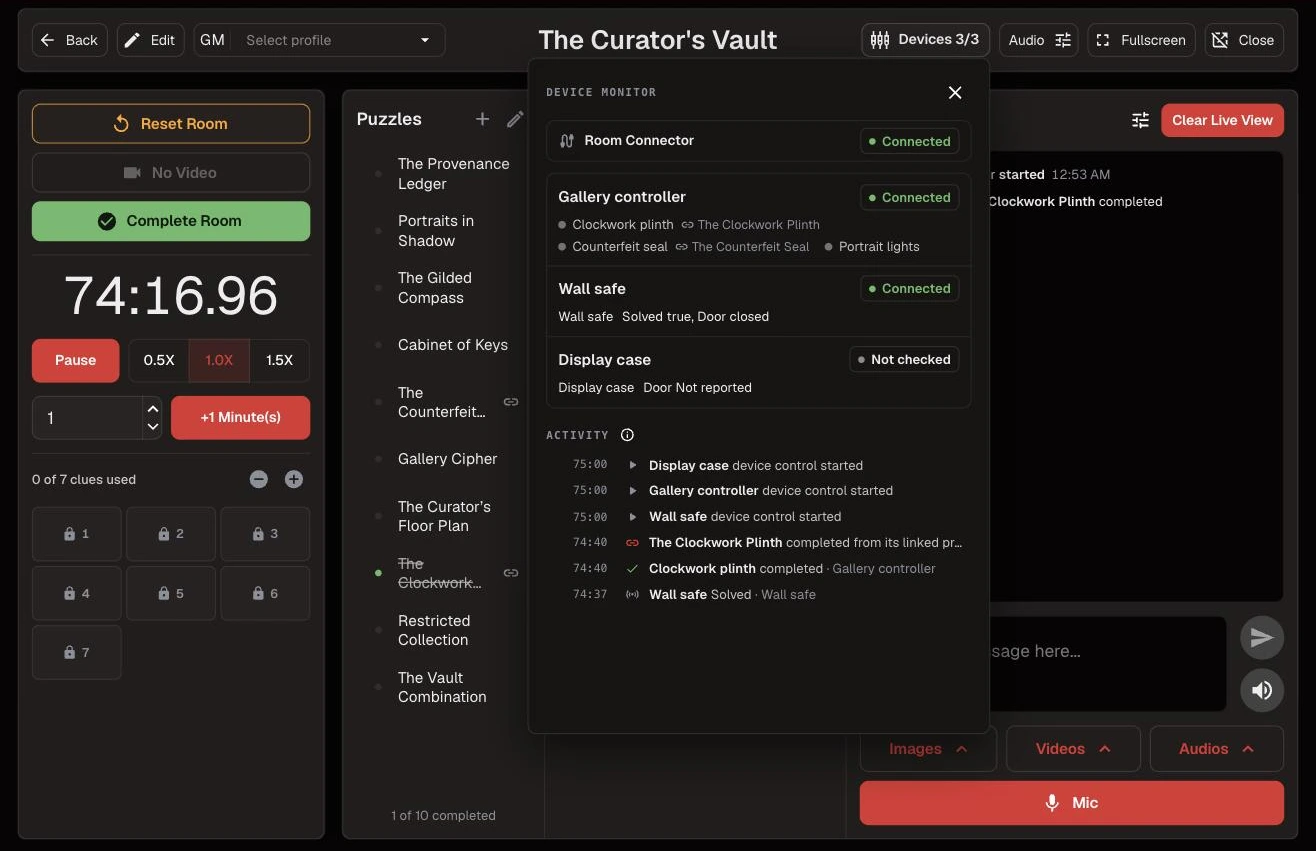
Players set the last gear and The Clockwork Plinth completes on the Dashboard. Device Monitor shows every prop's events as they happen and tracks Puzzle progress in real time.
Ready before you open
Check every prop as part of getting the Room ready for the day. Test mode runs each prop from the Devices page without running Automations or completing Puzzles, so you can catch a loose wire or a sticky lock long before the first group arrives. During games, the Room Dashboard shows each prop's status at a glance.
Your hardware, your way
Set it up in the app: Escape Director firmware turns a supported controller into a prop without writing any code. Connect what you already have: devices that already send messages on your network can join the Room as they are.
Or bring your own code. You've put real work into making your props unique, so keep it. The free, open-source Device SDK connects your existing code to Escape Director, on your own or with an AI coding assistant.
Keeps running when the internet doesn't
Props connect through Room Connector on your Room Station, so they keep responding, completing Puzzles and running Automations when your internet connection drops. Start with one prop and build from there. Hardware stays optional, and Rooms without it keep working as usual.
Keep going in the Product Guide
Find step-by-step instructions and more detail in the Product Guide.
A notification bell on the dashboard shows new Product Updates and trial reminders without leaving a game. Mark each one read, or mark them all read at once.
When a team's time qualifies for a published leaderboard, Save Room Statistics shows where it will place before you save.
Configure a Room to run a sequence on its own. Choose what starts it, put the Actions in the order they should happen, and enable it when the Room is ready. Automations run locally on the Room Station, so they keep working without a connection.
Choose the Trigger, add each Action in order, and enable the Automation when the sequence is ready.
Decide what starts the sequence
Automations live in a new Automations tab in Edit Room, beside Details, Puzzles & clues, and Media library. Each one is a single Trigger followed by an ordered list of Actions, written as a plain WHEN … THEN … sentence.
A Trigger can be the timer starting or resuming, the timer stopping, time remaining crossing a value you set, a specific Clue being sent, a specific Puzzle being marked complete, or every completable Puzzle being finished. Each Trigger carries its own repetition rule, and the editor states it under your selection: a time threshold fires at most once per game, a specific Clue fires on its first successful send, and a Puzzle completion fires every time it happens.
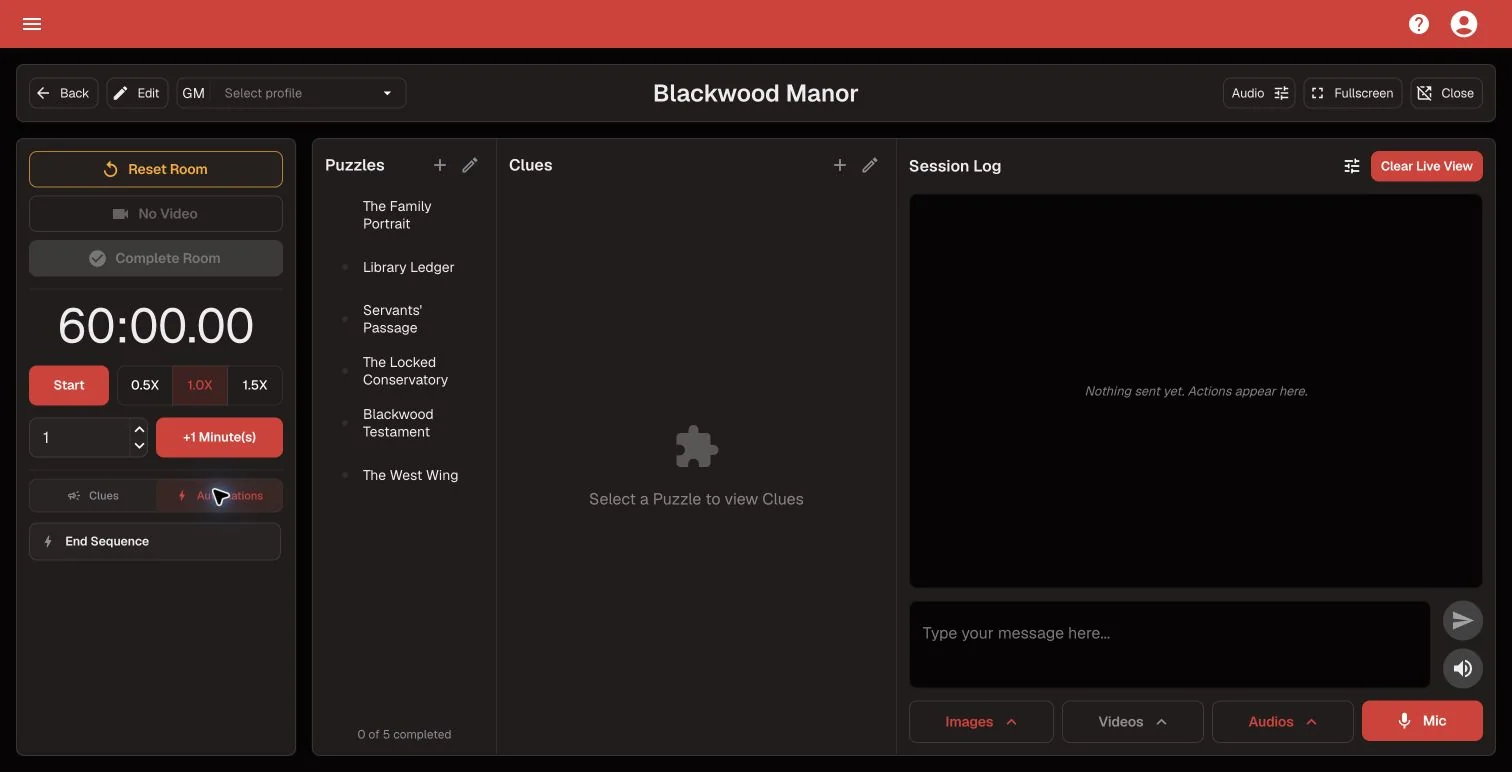
For sequences a Game Master should start deliberately, use a Dashboard Automation Button instead. Enabled button Automations turn the Clue controls into two tabs, Clues and Automations, with Clues always the default when the Dashboard opens or the Room is reset.
Every Automation Button takes two presses: the first arms it, and an amber rule drains along the bottom edge while the second press is available.
Put the Actions in order
Add up to twenty Actions and drag them into the order they should run. Send a specific Clue or a custom message with an optional alert tone, mark a Puzzle complete, add or subtract timer seconds, start or stop the timer, show an image, play a video or audio file, stop audio, clear Live View, start or stop the soundtrack, wait between one second and five minutes, or end the Room as a completion or a failure.
Video and audio Actions continue immediately by default. Turn on “Wait until finished before continuing” when the next Action should hold until the media ends. The editor disables Actions that need Room content you have not configured. Complete Room and Fail Room must be last, so you cannot add another Action after either one.
Built-in Room behavior is unchanged and cannot be automated away. An automated Complete Room still stops the timer and soundtrack, shows your configured success media, and opens the normal end-of-session flow.
Safe to edit, safe to run
Every Automation starts disabled, and enabling it revalidates the Trigger, the Actions, and everything they point at. Automations reference Clues, Puzzles, and media by identity rather than by name or position, so renaming and reordering are safe. Deleting something an Automation depends on is blocked and lists the Automations that use it, so a saved Automation is never left pointing at a Clue that no longer exists.
State-setting Actions skip cleanly when the Room is already in the requested state — starting a running timer, completing a completed Puzzle, stopping audio that is not playing. A skip is recorded, not treated as a failure.
Runs on the Room Station, connection or not
Automations are part of the Room configuration, so a prepared Room carries its enabled Automations and their media with it. During an admitted game the Room Station matches Triggers and runs Actions locally, with no backend call on the path between a Trigger and the first Action.
Each run appears in the Session Log as one expandable Automation Run showing its name, Trigger, start time, and Action count. Expand it to review the Actions in their running order. The grouped record is saved with the Room Session, including sessions that finish offline and submit later.
Editing and saving an Automation does not run its Actions. Test a finished Automation from the Room Dashboard in a controlled Room, then select Reset Room. Dashboard tests are real runs: they can change the timer, send Clues, play media, and complete or fail the Room.
Keep going in the Product Guide
Find step-by-step instructions and more detail in the Product Guide.
The Room Dashboard audio controls are now one Audio mixer. Each configured Room track — soundtrack, Clue alert, escape sound, time-up sound — has its own play, restart, mute, and volume, and any audio currently playing through Live View appears under Also playing with its own volume, mute, and stop.
Clue buttons on the Room Dashboard are larger, so the Clue a Game Master needs is easier to hit under pressure.
The public leaderboard sizes its rows and type from the display it is shown on, so the same board stays readable on a portrait lobby screen and on a wide projector.
The Room Dashboard uses one shared type scale across the timer, Puzzle rail, Clue buttons, and Session Log, so related controls no longer drift apart in size.
Fixes
2
Restoring the built-in Clue alert tone failed when an Automation or a media Clue referenced the custom tone it replaced, and could remove those Clues. Restoring the default now keeps the same media reference intact.
The Game Master selector in the Room Dashboard header sat slightly out of line with the controls beside it.
Ask a question about a Room in plain language and get an answer built from your completed Room Sessions, with the numbers and the limitations that produced it. Ask Analytics is available on active paid Pro plans.
Choose a recommended question and Ask Analytics returns an answer grounded in completed Room Sessions.
Ask in plain language
Ask Analytics opens beside the dashboard you are already reading. Start from a recommended question — “What stands out about this Room?”, “Are any Puzzles taking too long to solve?”, “Are any Puzzles using too many Clues?”, “How are my Game Masters performing?”, “Is this Room’s Success Rate improving or declining?” — or type your own.
The panel takes the selected Room, date range, and your time zone as defaults, so “this Room” means what is on screen. Change the dashboard, the Room, or the period and the conversation continues rather than restarting. You can also ask about another Room you own, all of your Rooms, or a longer stretch of history without leaving the chat.
Because the answers come from games you have already run, a question is worth asking while the night is still fresh — whether a Puzzle needs attention, or whether last month’s change to a Room actually helped.
Answers you can check
Ask Analytics runs the same governed metrics your dashboards use. It cannot write SQL, invent a formula, or define a metric of its own, so an answer and a card that claim the same measure are computed the same way.
Show calculation opens the evidence behind an answer: what the metric means, which Room Sessions were eligible, the named Room scope, the period and time zone, the sample size, and coverage. When the available sessions cannot support the question, the answer says so instead of estimating.
The assistant is read-only and works from aggregates. It is not given team names, notes, Clue text, custom messages, or individual Room Session records, and it has no tool that can change your data. If it suggests a dashboard card, that card is a proposal with its exact configuration shown; nothing is saved until you apply it.
Ask Analytics is available on active paid Pro plans. It has a monthly usage allowance, and the panel warns you as you approach it.
Keep going in the Product Guide
Find step-by-step instructions and more detail in the Product Guide.
The date-range selector stays aligned when you move between Dashboards and Compare. Compare keeps its Room selectors inside the comparison workspace.
Choosing a metric when you add or edit a card is now a searchable list, and a metric that is no longer supported is shown as unavailable instead of quietly disappearing from the options.
Saved time and reported Clues are larger on the public leaderboard, so the supporting numbers stay readable from across a lobby without competing with the team name.
You can stop an answer while it is being written and ask something else instead of waiting for it to finish.
Mark an answer helpful or not helpful from the panel to send feedback.
Fixes
2
Stopping your very first question in a chat left that conversation open in the background instead of ending it.
Analytics dialogs opened behind the Ask Analytics launcher and could not be reached.
Completed Room Sessions now feed a dashboard workspace. Start from a template built around one question, arrange the cards you actually review, and read every number beside the sample and coverage that produced it.
Room Summary, Puzzle Performance, and comparison dashboards share one analytics workspace.
Start from the dashboard that matches the question
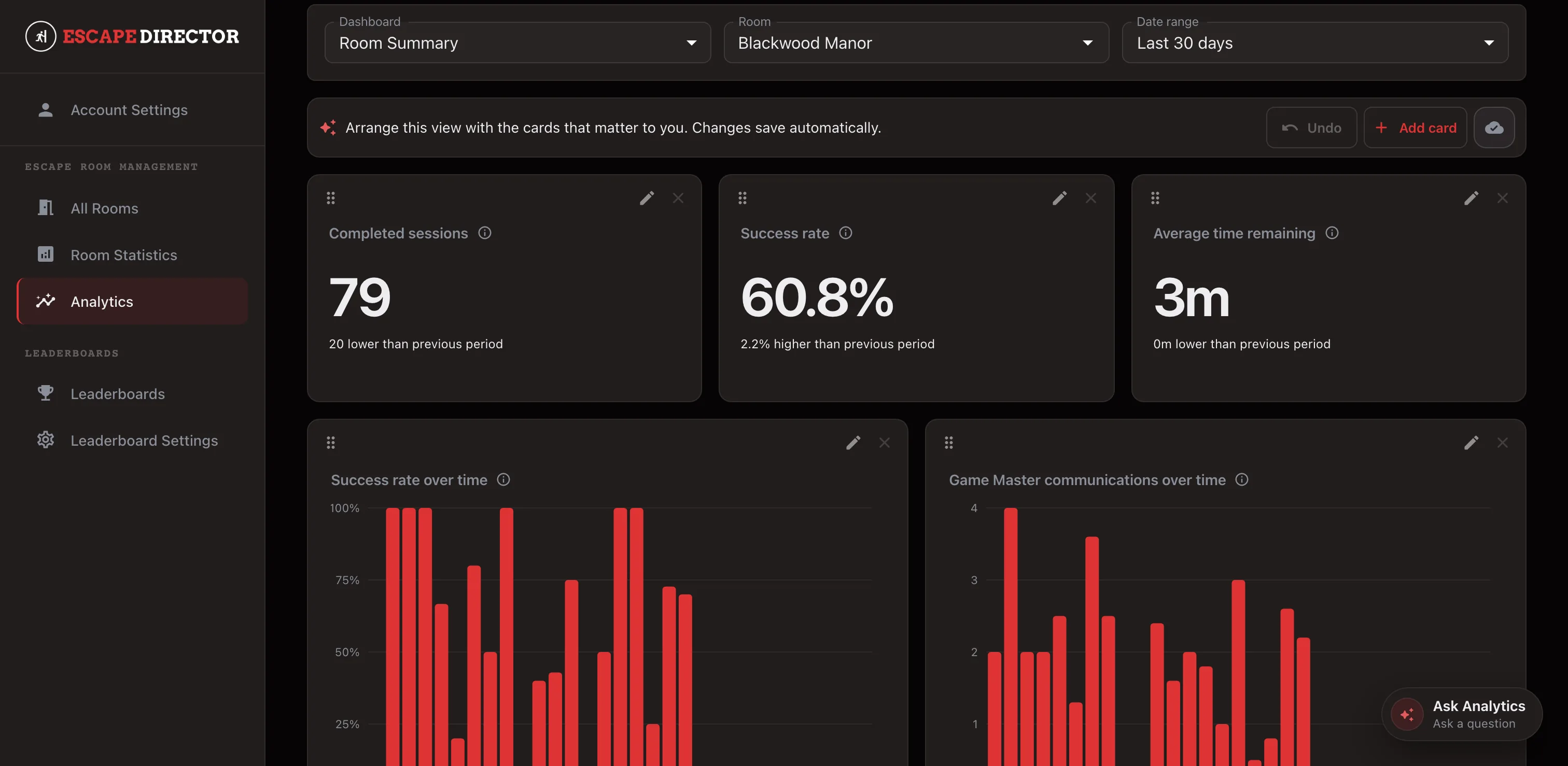
Analytics opens on Dashboards. Room Summary covers one Room: completed Room Sessions, Success Rate, and Average Time Remaining, with success rate and Game Master communications by day. Game Master Summary narrows the same measures to one person inside that Room. Puzzle Performance shows completion rate, typical completion time, and average Clues before completion for each Puzzle. Player Experience splits results by whether a group was all first-time, mixed, or all experienced players.
Choose the Room and the Analysis Period — the last 30 days by default, or 90 days, six months, a year, all time, or a custom range. The period applies to every card on that dashboard, and each trend picks a grouping that stays readable over the length you chose.
Puzzle breakdowns follow the Room's configured Puzzle order rather than sorting best to worst, so progression and drop-off are easy to scan. Reordering a Puzzle changes only that presentation; it never rewrites past results.
Arrange the cards around your review
Add card offers the supported metrics and the presentations each one allows. Move and resize cards so the questions your team asks every week sit where you look first. Layout changes save on their own — wait for Saved before you leave the page.
Analytics accepts defined metrics and their supported parameters, not free-form formulas, so a card means the same thing on every dashboard, in every comparison, and in every export.
Read the evidence, not just the number
Every result carries its own explanation: the metric's meaning, which Room Sessions were eligible, the named Room scope, the period and resolved time zone, the sample size, and coverage. Limited data means the answer is available but its sample or coverage is thin — not that zero was observed.
When you need a governed number outside the app, export a single card as CSV. The export re-runs that card's exact query and returns the aggregate only, never raw Room Sessions.
Compare deliberately
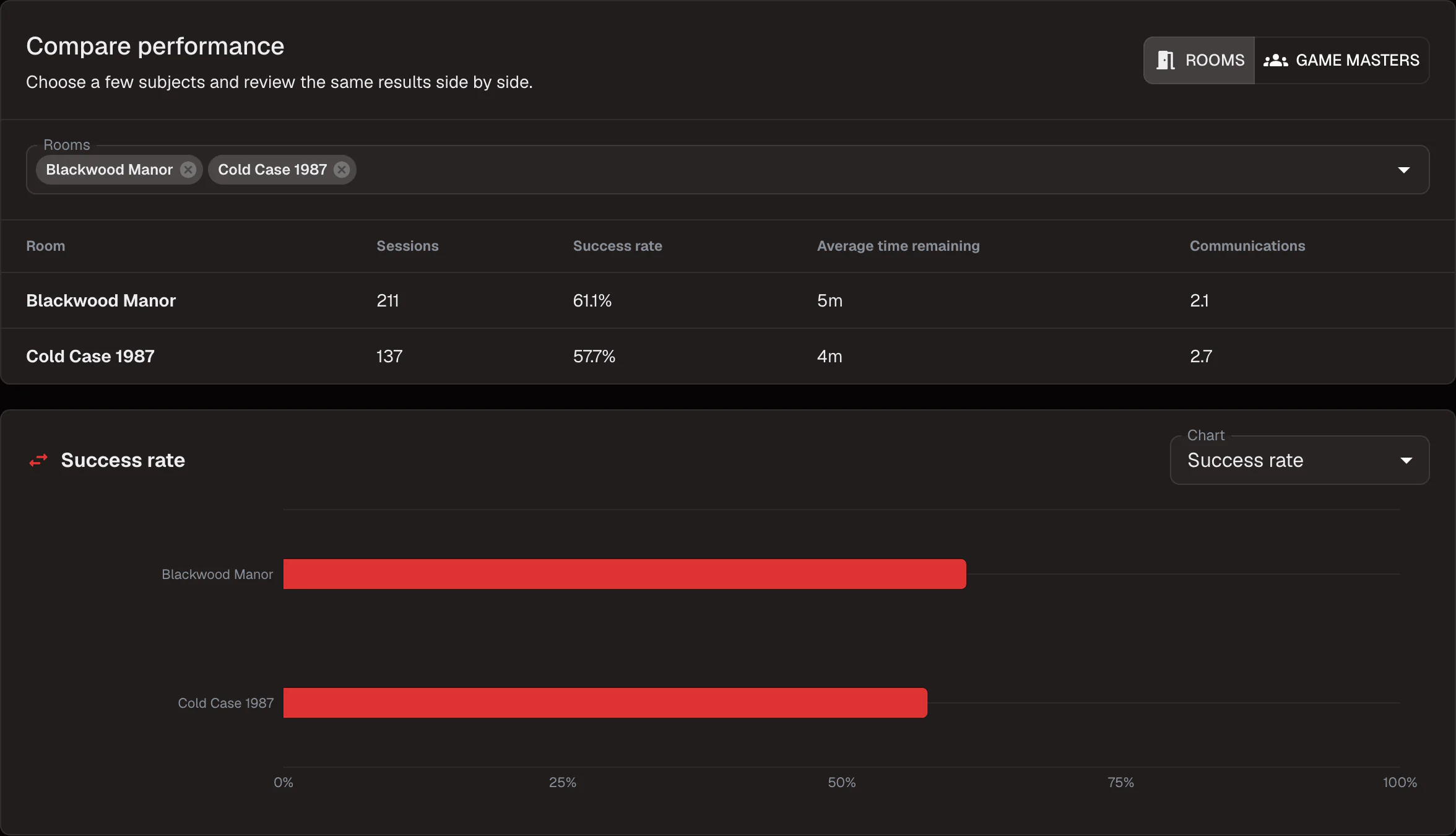
Compare is a separate workspace for setting two to five Rooms, or the Game Masters working inside one Room, beside each other. Each side keeps its own sample size and coverage, and nothing is pooled into a single overall score.
Differences are presented as what was observed, not as proof that one Room or one person caused them. Two Rooms with different lengths and difficulty will differ for reasons no metric here is claiming to explain — which is exactly why the sample and coverage stay next to the value.
Keep going in the Product Guide
Find step-by-step instructions and more detail in the Product Guide.
Puzzles and Clues can be added, edited, reordered, and deleted from the Room Dashboard while a game is running. Content edits apply to the next game, and the dialog says so — the session in progress keeps the Puzzles it started with, along with its completions and Session Log.
Turning off “Counts as solved” makes a Puzzle row a Clue Section: a way to group related Clues without adding to the completed-Puzzle count or to Puzzle analytics. Whether a Puzzle counts as solved is fixed when a game is admitted, so changing it mid-shift cannot rewrite a running session.
Game Master profiles are managed from the Game Master selector on any Room Dashboard. Add one profile per person, rename it when their staff-facing name changes, and archive people who should no longer be selectable for new sessions while their past sessions stay attributed.
A game can start before a Game Master is chosen. Select one from the Dashboard header at any point during the game and it carries into the end-of-session dialog, where it can still be corrected before you save.
Renaming a Game Master profile updates the name shown in Room Statistics and Leaderboards immediately instead of after a reload.
A saved Room Session can be corrected from Room Statistics — team name, Game Master, reported Clues, player counts, and notes. The previous value, the corrected value, who changed it, and when are all retained, and the original event history is never rewritten.
Each Room now decides whether it collects Reported Clues Used. When it is off, the end-of-session field is not shown or required, and the public leaderboard drops its Clues column and leaves equal times tied. Existing Rooms keep collecting it and rank exactly as before.
The public leaderboard paces itself and no longer has a rotation-interval setting. Standings that fit hold on screen, a longer list scrolls at a steady readable speed and advances when it reaches the end, a display set to reduce motion pages through the list instead, and touching the screen pauses the movement for a few seconds before it resumes where you left it.
Analytics charts separate an observed zero from data that is simply unavailable, use one tooltip structure across values and empty rows, and replace a chart with no available values with an explicit coverage note rather than an empty plot.
Long Clue text and custom messages wrap in the Session Log instead of being cut off, and Puzzle completion entries read more clearly at a glance during a game.
Reset Room hands straight to the next group. The Dashboard reuses the Room it has already verified instead of re-reading it from the server, and a Room Station keeps media that has not changed rather than downloading it again after a Room edit.
Fixes
4
A Clue queued in the message box was discarded as soon as you selected a different Puzzle.
Editing a Room while a game was running could disturb the player display. Live View now holds the Room revision the game was admitted with and releases it only when that game ends.
Puzzle completion progress could be lost during a game when the Room's Puzzles were edited.
Signing in could show the application before the session was confirmed, leaving the first screen looking signed out. Sign-in now waits for the confirmed session and reports a clear error when one cannot be established.
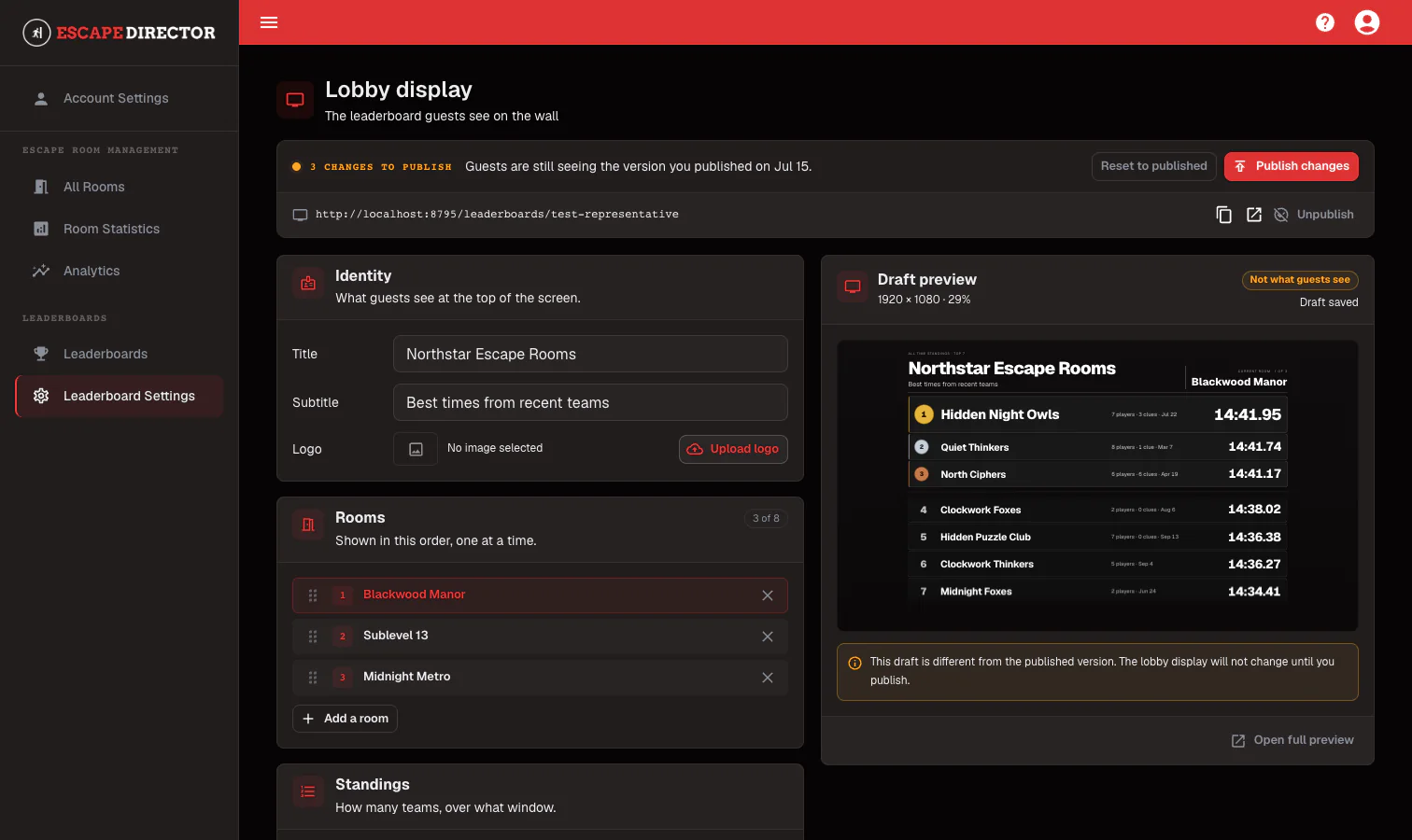
Successful Room Sessions now rank in the dashboard and on a lobby display you configure yourself. Choose the Rooms it rotates through, the period it covers, and how many teams appear, then publish when the draft looks right.
Update the Room rotation, publish the draft, and check the scrolling public display before it advances to the next Room.
Rankings with rules you can explain
Leaderboards ranks successful Room Sessions for a Room and a period — today, this week, this month, or all time. Saved time remaining sets the order. In Rooms that collect reported Clues, fewer Clues breaks a tie; in Rooms that do not, equal times stay tied and no Clues column appears. Failed Room Sessions are never ranked.
Individual entries stay under your control. Use the row edit action to correct a public team name, or select Exclude from public leaderboards to keep a Room Session in Room Statistics without showing it in the lobby. Show excluded lists what you have taken out, so a removal is never silent.
Build the lobby display as a draft
Display settings is a draft workspace. Set the title, subtitle, and logo; add Rooms and drag them into the order they should appear; choose how many teams to show and the ranking period; then pick the default background, any Room-specific exceptions, and the fallback colour used when there is no image.
Nothing you change reaches the lobby screen until you publish it. The draft preview sits beside the settings while the public display keeps showing the last published version. Reset to published discards a draft you have decided against, and View live opens the same link the lobby screen uses so you can judge it at display size.
It keeps itself current
Results refresh as games finish, so the next group walks past a time that was set an hour ago rather than one from last week — and nobody has to open a dashboard between sessions to make that happen.
Keep going in the Product Guide
Find step-by-step instructions and more detail in the Product Guide.
Offline status now names the actual condition wherever a Room appears — Offline update needed, Offline access expired, Offline files need repair — and a banner explains that offline-ready Rooms and game controls keep working while online-only actions are unavailable.
Account actions that need the server, such as opening Account Settings or logging out, say to reconnect instead of failing when you select them offline.
An application update can no longer interrupt a live game. The update prompt reports that a game is active and Update now stays disabled until the Room Session ends.
The public demo on the marketing site runs on representative Rooms and media rather than real customer content.
Fixes
1
Complete Room stayed unavailable for the rest of a game in Rooms where a video brief starts the timer automatically.